Adding Patients - Where the Billing Journey Begins
The Patients tab organises your billing by day using the date strip at the top. Tap the blue + button on an empty day for five ways to add patients: Find a patient, Enter new patient, Scan label, Copy from Previous Day, or Copy from a Specific Day.
Watch the “How to Add a Patient” reel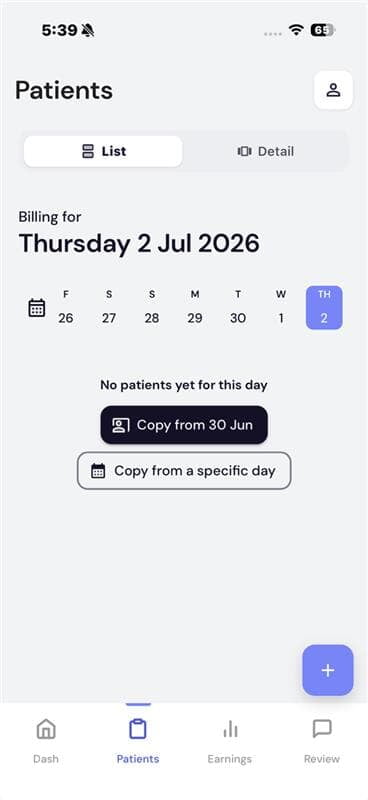
An empty billing day will appear - the App will automatically ask you if you want to copy Patients from your last billing day
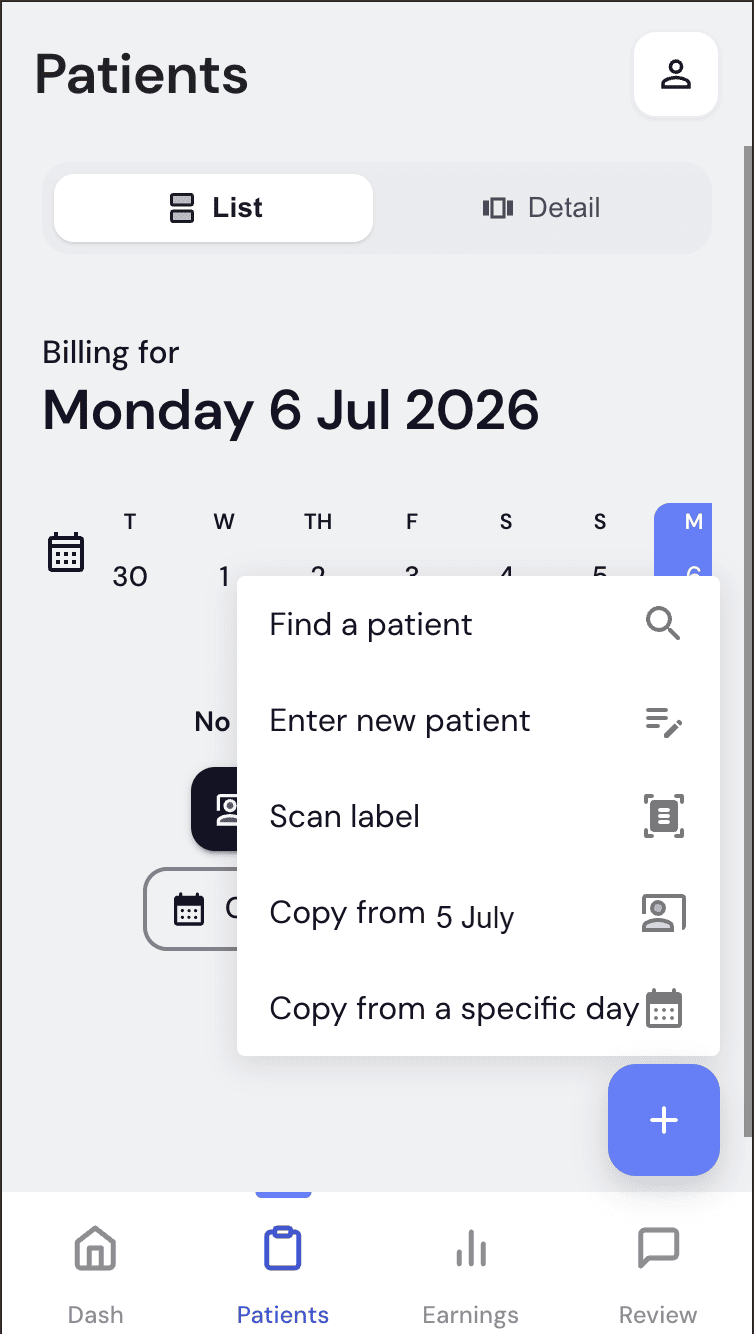
Tap Blue + to see all five Add Patient options. Select an Option.
Find a patient
Search by name or DOB for returning patients.
Enter new patient
Manually enter details for a brand new patient.
Scan label
Fastest — scan the patient sticker barcode.
Copy from Previous Day
Bring forward your most recent patient list.
Copy from a Specific Day
Pick any past date to copy its patient list.
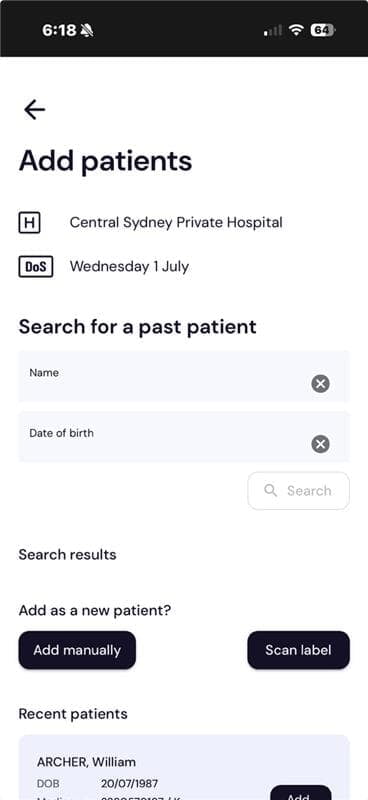
Find a patient
Best for returning patients & recurring billing - eg Ward Rounds.
Search by name or DOB to pull up their record from recent visits.
- Tap the blue + button
- Select "Find a patient"
- Enter Name and/or Date of birth, then tap Search
- Choose from the search results, or pick from Recent patients below
- No match? Tap "Add manually" or "Scan label" to add them as a new patient
Enter new patient
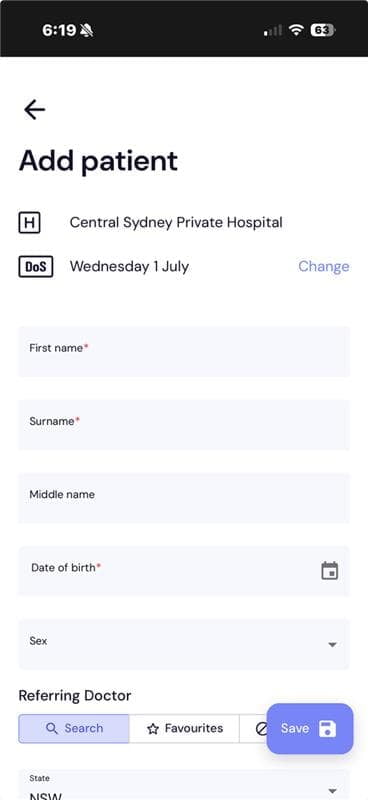
For brand new patients currently not in the system & when you are billing a single patient episode.
- Tap the blue + button
- Select "Enter new patient" (or "Add manually" from the Find a patient screen)
- Enter: First name, Surname, Middle name, Date of birth, Sex
- Add a Referring Doctor and State if required
- Tap Save
Scan label
The fastest method. Scan the patient stickers using your mobile phone.
The patient's details auto-populate instantly using Medbill advanced Ai and Optical Character Recognition.
No typing required - just review the details are correct and hit Save.
- Tap the blue + button, then select "Scan label"
- Choose the hospital to add the patient(s) to
- Tap Take Photo (or Photo Library / Choose File) and capture the sticker barcode
- The Add patient form auto-populates from the sticker
- Review the details are accurate & complete, then tap Save
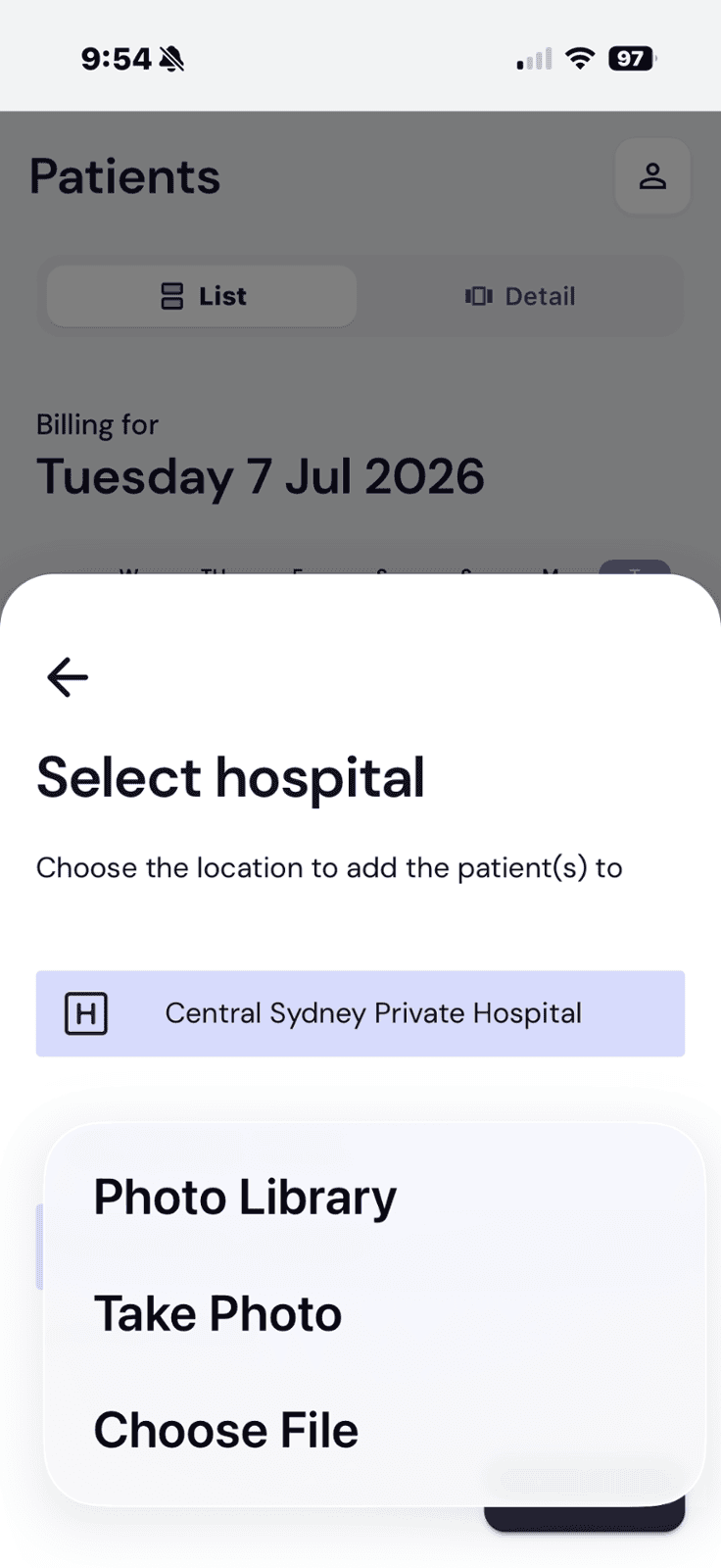
Take a Photo on your Phone Camera — or add a previously taken photo from the Photo Library
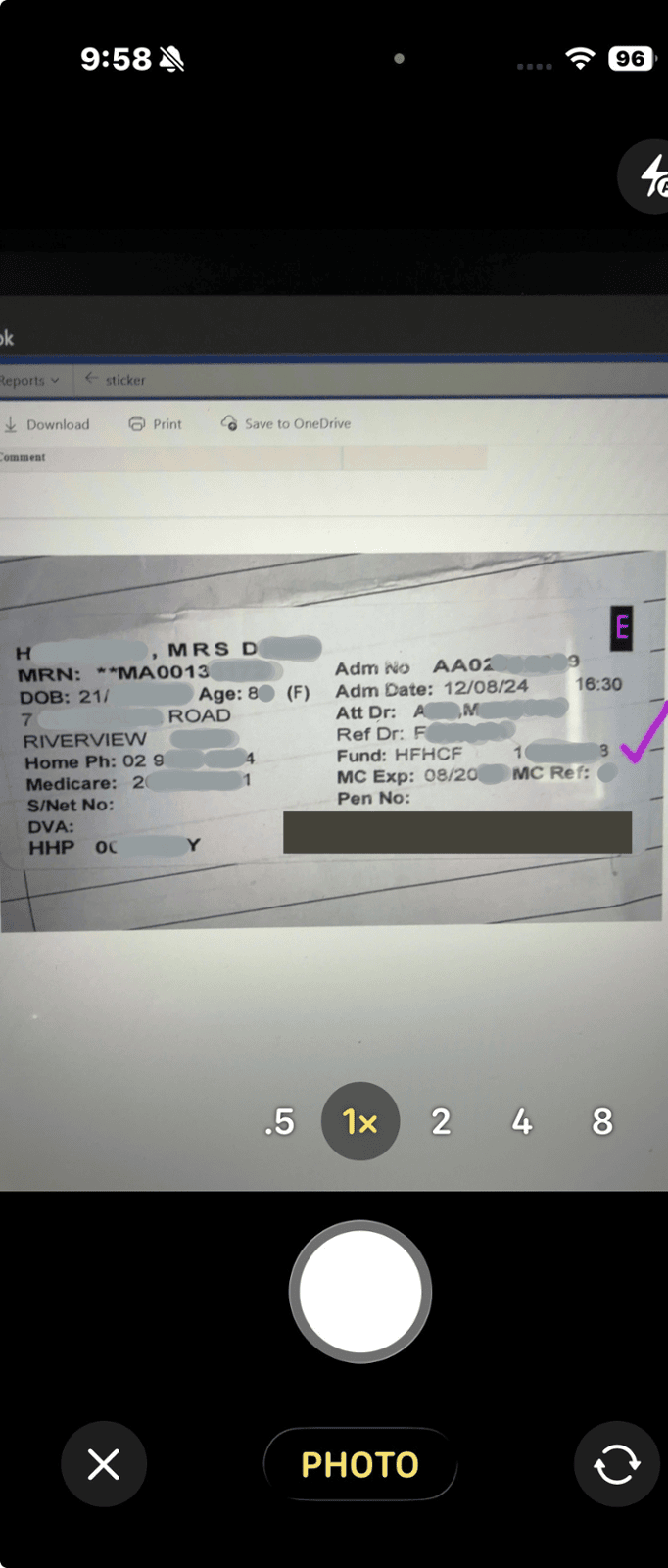
Photograph the sticker with your Camera
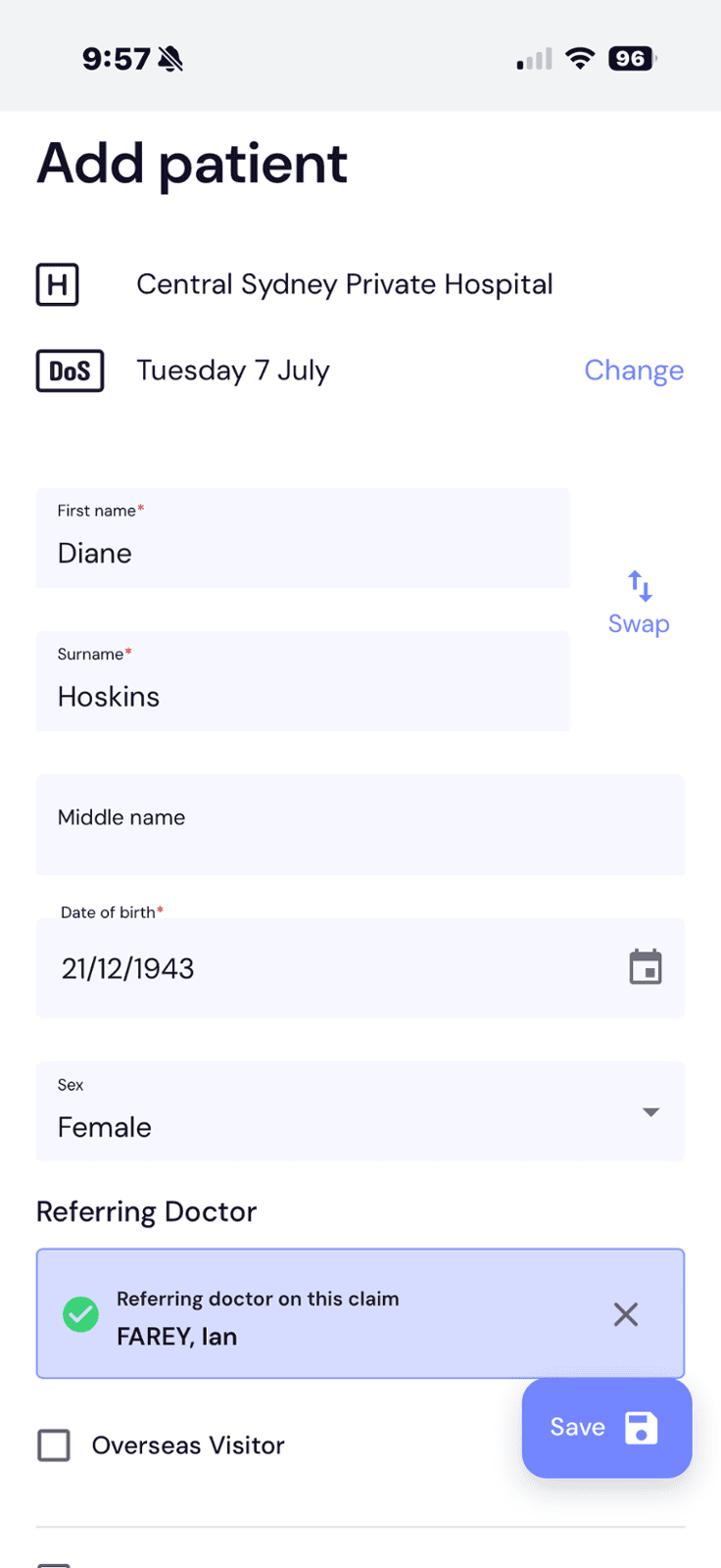
OCR will automatically read the sticker and auto populate all Patient Data. Review for errors and hit Save
Copy from Previous Day
Billing yesterdays patient list again today? Copy yesterdays billing list forward to today instead of re-entering everything.
- Select Copy From (Yesterday's Date) from the Options box
- All Pateints from yesterday will be automatically populated into today's billing list.
- You can simply toggle the 'Bill Today' button next to the Patient name to exclude a Patient from the billing list. If you toggle the button it will change to 'Excluded' and you have the option to 'Discharge' or 'Delete from Submission'.
![Copy from [previous date] option in the add-patient menu](img/06a40f71-f453-4862-8f67-71fb37e6ece8.png)
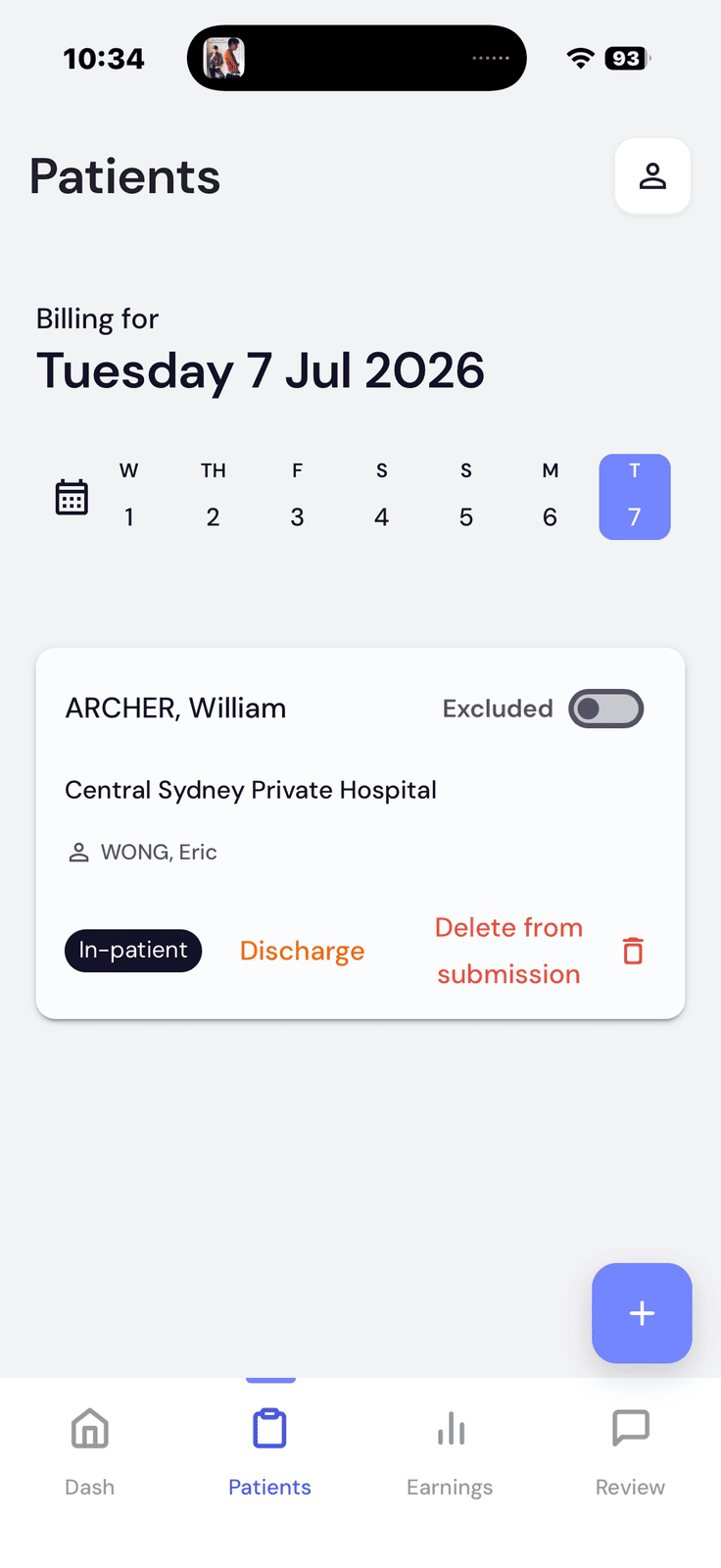
Copy from a Specific Day
Need a list from further back than yesterday? Choose exactly which day to copy from.
- On an empty day, tap the blue + button, then "Copy from a specific day"
- On the Copy patients to screen, tap the Copy from field to pick any date
- That day's patient list is copied across to today. Exclude any Patients from billing as per the above section.
You can photograph patient stickers directly in the app, or capture them on your phone's camera and upload them later. No more collecting stickers on pieces of paper! It's much more secure & nothing is lost or forgotten.